
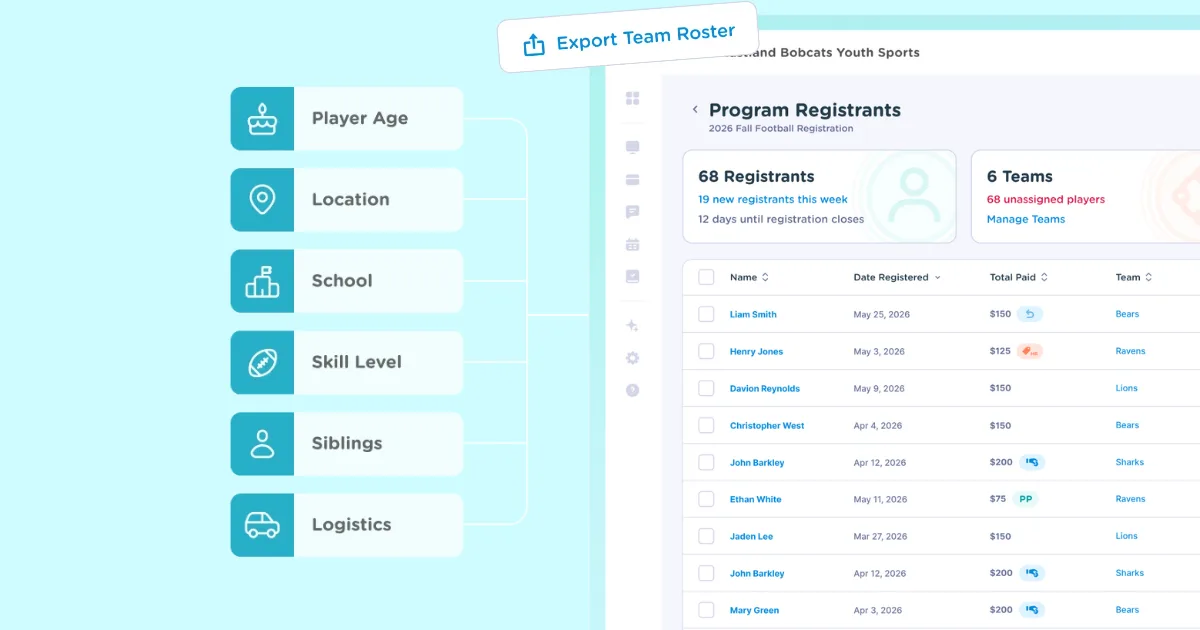
This week we released a new online registration feature to allow you to create and manage teams! You can now create teams, assign registrants and share rosters with coaches and other volunteers.
Continue reading for a high-level overview of the new feature or for a more in-depth product tutorial, check out How to Create and Manage Teams.
How to Create Teams
You can start building teams during registration or wait until after registration closes. To create your first team, navigate to your Program Registrants page and click +Add Teams. From there, type in the name of each individual team.
Team names are listed in alphabetical order and be edited at a later time.
How Add Players to Rosters
Once you've created your teams, it's time to add those players to rosters. There are a few ways you can assign registrants to a team. You can hand select registrants for each team or they can be randomly assigned. We'll cover each option and the common use cases for each.
Manually Assign Individuals
Administrators can individually assign registrants to existing teams. There may be cases where a player has requested a specific coach or a parent has asked for their children to be on the same team. Whatever the reason, it's easy to manually assign an individual to a team.
A common method is to click on the Teams column and choose the intended team. You'll see that the registrant instantly is added to that team.
Use Filters to Bulk Assign Registrants
We recently released a new feature that added a filter option for registrant data. Now, you can filter registrants by criteria like payment status, dropdown question responses, checkbox responses and gender.
Using filters to build teams works well if you need to narrow down a list of registrants by their form responses. For example, you can filter by a dropdown question like grade and use the responses to quickly bulk assign registrants to a team.
Randomly Assign All Registrants
You can also randomly assign a group of players, or your entire league. This is best for teams that don't have a reason behind team assignments like grade, playing level or school attended. Our tool will evenly distribute registrants across the existing teams.
Share Team Rosters with Coaches or Admins
Once team assignments are completed, you can share team rosters with coaches and other admin by exporting the team details to a PDF. Each PDF contains essential information about all team members. You can export all team rosters or choose individual ones.
What's Next?
Check out our Product Roadmap where we publish recent releases and plans for the future. On the roadmap is plans for an improved registration form builder and welcome messages for new registrants.
Have ideas for new features? Send us an email at help@jerseywatch.com!

Tim GusweilerCo-Founder / CEO
Tim is the Co-Founder of Jersey Watch, where he works with the product, marketing, and customer support teams to build software for youth sports organizations. He writes about youth sports management based on years of experience working with league administrators, coaches, and volunteers, along with a lifelong passion for sports.


